You sit down to work, ready to tackle your emails or finish that big project. You reach for your coffee, maybe brush against the keyboard, and suddenly—everything is wrong. Your entire desktop has flipped 90 degrees. Now you are tilting your head like a confused puppy just to read your Start menu.
If your computer screen is sideways, you are not alone. This is one of the most common “panic moments” for PC users across the United States. Whether it happened because of a mischievous cat walking across your keyboard, a curious toddler, or just an accidental slip of the fingers, the result is the same: a workspace that is impossible to use.
The good news is that your computer is not broken. You don’t need to call a technician or buy a new monitor. Fixing a sideways screen is usually a matter of pressing a few keys or changing a simple setting. In this guide, we will walk you through exactly how to get your world right-side up again.
The “Magic” Keyboard Shortcut
For many users, the solution is literally at your fingertips. Windows has built-in hotkeys designed to rotate your screen quickly. This feature is often the culprit behind the problem in the first place, as it is very easy to hit these keys by accident.
To fix your screen instantly, try pressing Ctrl + Alt + Up Arrow.
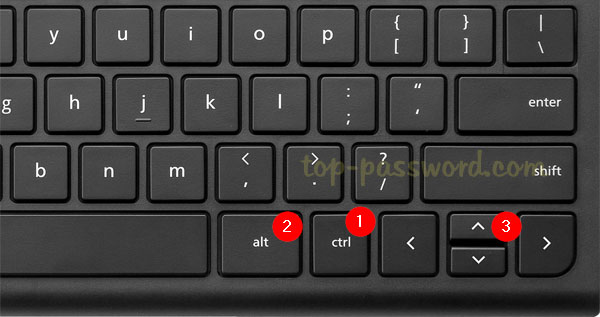
This specific combination tells your computer to return to the standard landscape orientation. If that worked, you can stop reading right here and get back to work!
However, if nothing happened, don’t worry. Manufacturers like HP, Dell, and Lenovo sometimes disable these hotkeys by default, or your specific graphics driver might not support them. If the “magic” shortcut didn’t work, we have two more foolproof methods that will.
Using Windows Display Settings
If the keyboard shortcut failed, the most reliable way to fix a sideways screen is through the Windows settings menu. This method works for everyone, regardless of what brand of laptop or desktop computer you own.
You will need to use your mouse, which can be tricky when everything is sideways. Remember that your mouse movement is relative to the screen. If you move your mouse “up” physically, the cursor might move right or left depending on how the screen is rotated. Take it slow.
First, minimize your open windows so you can see your desktop background. Right-click on any empty space on the desktop. A menu will pop up. Look for an option that says Display settings and click on it.
This will open a new window with various options for your monitor. Scroll down until you see a section labeled “Scale and layout.” Under this section, you will find a dropdown menu called Display orientation.
If your screen is sideways, this menu will likely say “Portrait” or “Portrait (flipped).” Click the menu and select Landscape.
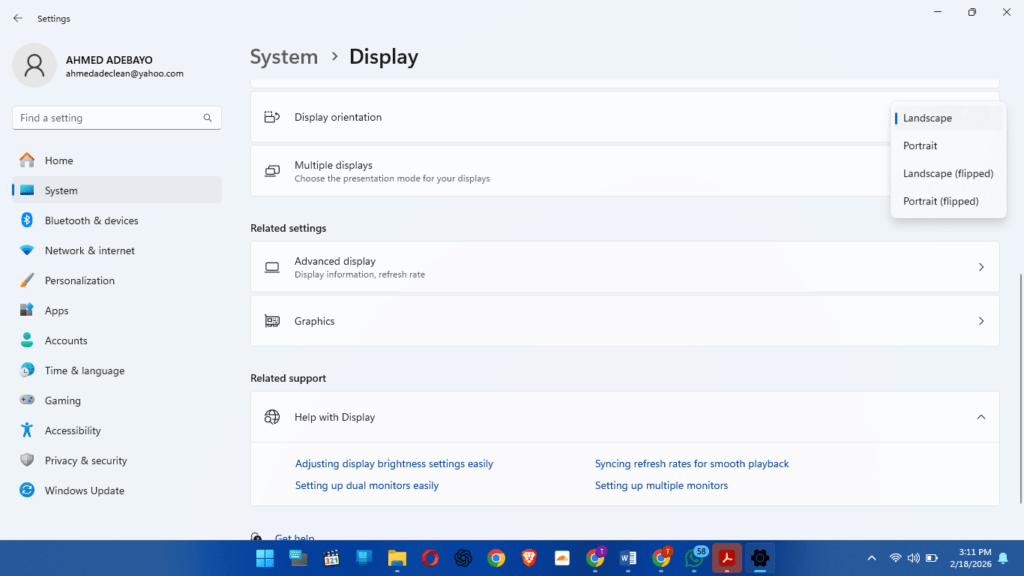
Windows will immediately rotate your screen back to normal. A confirmation box will appear asking if you want to keep these changes. Click “Keep changes” before the timer runs out, or it will revert to the sideways view.
Adjusting Graphics Card Settings
Sometimes, Windows settings might be overridden by your computer’s graphics software. This is more common in gaming PCs or setups with multiple monitors. If the standard Windows method didn’t stick, you might need to check the control panel for your specific graphics card.
Most computers in the US use graphics processors from Intel, NVIDIA, or AMD. You can usually access these settings by right-clicking on your desktop, just like in the previous step.
Look for an option like “Intel Graphics Settings,” “NVIDIA Control Panel,” or “AMD Radeon Software.”
Inside these control panels, the navigation differs slightly, but you are looking for a tab labeled “Display” or “Rotation.” For example, in the NVIDIA Control Panel, there is a specific task called “Rotate display” under the Display menu. Select the display you want to fix and choose “Landscape” as the orientation.
This method is particularly helpful if you have a multi-monitor setup and only one screen has turned sideways.
Why Did This Happen?
Understanding why this happened can help you keep it from happening again. The most common cause is “hotkeys.”
Intel graphics drivers, which power millions of office laptops, often have the Ctrl + Alt + Arrow Key shortcuts enabled by default. If you were attempting to copy text (Ctrl + C) or switch windows (Alt + Tab) and your finger slipped, you might have inadvertently triggered the rotation.
Another common reason is connecting an external monitor or projector. sometimes Windows gets confused about how you want to use the new display and defaults to portrait mode, assuming you might have a vertical monitor setup.
How to Lock Your Screen Orientation
If you want to ensure your screen never flips sideways again, you can disable the hotkeys.
To do this, you usually need to go into your graphics control panel (Intel, NVIDIA, or AMD) as mentioned in the previous section. Look for a “Hotkeys” or “Shortcuts” menu. There, you can simply uncheck the box that says “Enable Hotkeys” or specifically disable the rotation shortcuts.
For tablet users or those with 2-in-1 laptops (like the Microsoft Surface or HP Envy x360), you also have a “Rotation Lock” feature similar to a smartphone.
Open the Action Center by clicking the notification icon in the bottom right corner of your taskbar (or pressing Windows Key + A). Look for a button labeled Rotation lock. If it is highlighted, your screen orientation is locked. If you are using a laptop in standard mode, this option might be grayed out, which is normal.
Frequently Asked Questions
Q: My mouse moves weirdly when the screen is sideways. How do I control it?
A: This is the hardest part! The mouse orientation changes with the screen. It helps to physically turn your mouse 90 degrees on your desk to match the screen. This tricks your brain and makes navigating to the “Display settings” much easier.
Q: Can a virus cause my screen to flip?
A: It is extremely unlikely. While malware can cause many annoying behaviors, a sideways screen is almost always a harmless settings change or an accidental keystroke. Running a quick virus scan is never a bad idea for peace of mind, but it likely isn’t the cause here.
Q: I tried everything and it is still sideways. What now?
A: If the screen reverts to sideways immediately after you fix it, you might have a stuck key on your keyboard. Check your arrow keys to make sure they aren’t physically depressed or sticky. Alternatively, try updating your graphics drivers through the Device Manager.
Q: Is portrait mode ever useful?
A: Absolutely! Many programmers, writers, and data analysts intentionally rotate their monitors to portrait mode. It allows you to see more lines of code or rows of data without scrolling. If you have a monitor stand that rotates, give it a try—you might actually like working that way!
Conclusion
A sideways computer screen is a jarring experience, but it is rarely a sign of a serious problem. Whether you used the quick keyboard shortcut or navigated through the display settings, you should now be looking at a properly oriented desktop.
Remember, technology is a tool, and sometimes tools get a little quirky. Knowing these simple troubleshooting steps saves you time, money, and stress. So the next time your screen—or a colleague’s screen—decides to do a barrel roll, you will know exactly how to fix it in seconds.