Have you ever spent time carefully composing an email, attaching a crucial file, only to be met with a “Message not sent; file is too large” error? It’s a common and frustrating experience. Email providers impose strict limits on attachment sizes, turning a simple task into a major headache. High-resolution photos, video projects, and detailed reports often exceed these limits, leaving you searching for a workable solution.
The good news is there’s a simple, efficient, and free way to bypass these restrictions. This guide will introduce you to WeTransfer, a tool designed to make sending large files effortless. We’ll explore how it works, its key benefits, and why it’s a superior alternative to traditional email attachments.
Why Emailing Large Files Is a Problem
For decades, email has been the backbone of digital communication. It’s quick, direct, and universally adopted. However, it was never designed to be a bulk transport service. When you try to attach files larger than a few megabytes (MB), you quickly run into several issues.
Strict File Size Limits
Most popular email services impose strict limits on attachment sizes. For example, Gmail and Outlook cap attachments at just 25MB. This might be enough for a few documents or low-resolution images, but it’s completely inadequate for modern creative and professional files. High-quality videos, design proofs, architectural plans, and extensive datasets can easily run into hundreds of MBs or even gigabytes (GBs).
Clogged Inboxes
Even if your file squeaks by your provider’s limit, you have to consider the recipient. Large attachments can quickly fill up their inbox storage, leading to delivery failures and forcing them to delete other important messages. It’s an inconvenient and often unprofessional experience for the person you’re trying to work with.
Security Concerns
Standard email is not inherently secure. Attachments are not typically encrypted end-to-end, meaning they could potentially be intercepted during transit. Sending sensitive information like financial records, legal documents, or personal data via email attachments exposes you and your clients to unnecessary risks.
What is WeTransfer?
WeTransfer is a web-based file transfer service built on a simple premise: sending large files should be easy, secure, and fast. It bypasses the limitations of email by hosting your files on its own servers and providing the recipient with a simple download link.
Launched in 2009, its user-friendly interface and generous free plan quickly made it a favorite among creatives, freelancers, and businesses worldwide. You don’t even need to create an account to get started, which removes a significant barrier for casual users.
How to Send Files with WeTransfer (Free Version)
One of the best things about WeTransfer is its simplicity. You can send a file in under a minute. Here’s a step-by-step guide to using the free service.
Step 1: Go to the WeTransfer Website
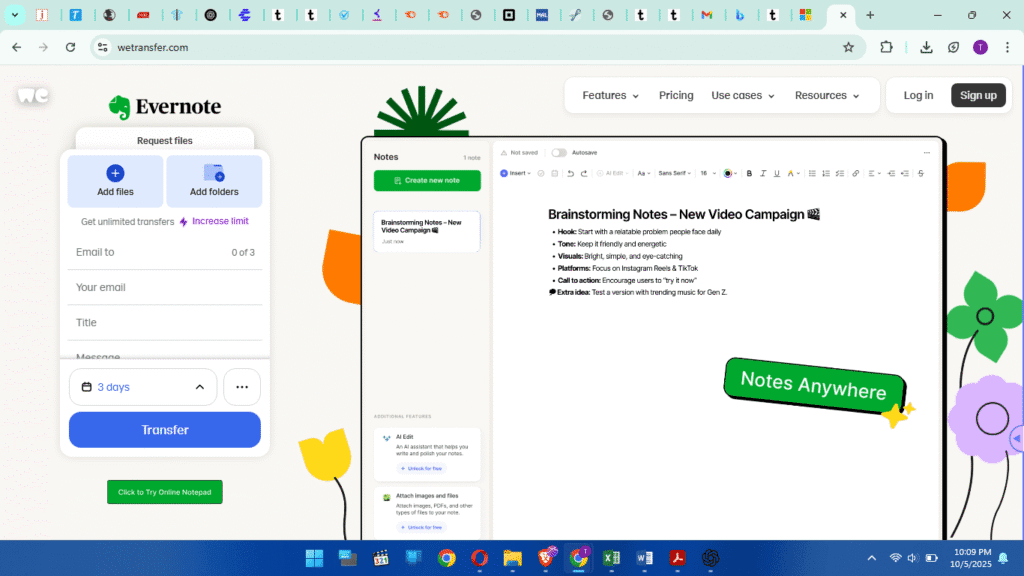
Open your web browser and navigate to WeTransfer.com. You’ll be greeted by a clean, minimalist transfer window, ready for your files. There’s no need to sign up or log in.
Step 2: Add Your Files
You have two options for uploading:
- Drag and Drop: Simply drag the files or folders from your computer and drop them anywhere on the transfer window.
- Click to Upload: Click the blue plus (+) icon or the “Upload files” button to open your computer’s file explorer and select the items you want to send.
The free plan allows you to send up to 2GB per transfer.
Step 3: Enter Recipient and Sender Information
Once your files are added, you’ll need to fill in a few fields:
- Email to: Enter the email address of the person you want to send the files to. You can add multiple recipients.
- Your email: Enter your own email address. WeTransfer will use this to send you a confirmation once the files are sent and another notification when they are downloaded.
- Title: Give your transfer a clear title.
- Message (Optional): Add a short message to provide context for the recipient. It’s a good practice to let them know what the files are for.
Step 4: Choose Your Transfer Method
Click the three-dots icon (…) to choose how you want to share. You have two options:
- Send email transfer: This is the default. WeTransfer will automatically email a download link to your recipient(s).
- Get transfer link: This option generates a unique URL that you can copy and paste into a messaging app, your own email client, or anywhere else.
Step 5: Click “Transfer”
After filling in the details, click the “Transfer” button. WeTransfer will ask you to verify your email with a code sent to your inbox. Enter the code, and your files will begin uploading. Once complete, your recipient will get the link, and you’ll receive a confirmation email. Files sent via the free service are available for seven days before they expire.
WeTransfer Pro: Is it Worth It?
For those who regularly send large files or need more advanced features, WeTransfer offers a paid subscription called Pro. Here’s what the upgrade gets you:
- Increased Transfer Size: Send up to 200GB in a single transfer.
- More Storage: Get 1TB of storage per team member for your transfers.
- Password Protection: Add a password to your transfers for an extra layer of security.
- Custom Expiration Dates: Set your files to expire whenever you choose, or prevent them from expiring at all.
- Branding: Customize your download page and emails with your own logo and wallpapers, creating a more professional look.
- Transfer Tracking: See exactly when your files are downloaded and by whom.
If your work depends on sharing large, sensitive files, the security and branding features of the Pro plan can be a valuable investment.
WeTransfer Pros and Cons
Like any tool, WeTransfer has its strengths and weaknesses.
Pros:
- Extremely Easy to Use: The interface is intuitive, requiring no technical knowledge.
- Generous Free Plan: 2GB is enough for many day-to-day needs, and no account is required.
- No Software to Install: It’s entirely browser-based, making it accessible from any computer.
- Fast and Reliable: Upload and download speeds are generally excellent.
Cons:
- Limited Free Version: The 7-day expiration on free transfers can be inconvenient if your recipient doesn’t download the files in time.
- Security on Free Plan: The free service lacks password protection, which may not be suitable for highly confidential documents.
- Intrusive Advertising: The background of the free site is a full-screen advertisement, which some users may find distracting.
How WeTransfer Compares to Other Services
WeTransfer is not the only player in the file-sharing game. Here’s how it stacks up against other popular alternatives.
Google Drive / Dropbox
These services are primarily cloud storage solutions, not just transfer tools. They are excellent for long-term storage and team collaboration.
- File Size: Google Drive offers 15GB of free storage, but file sharing is tied to this limit. Dropbox offers only 2GB for free.
- Ease of Use: Sharing requires logging in, navigating your drive, and setting permissions. It’s slightly more complex than WeTransfer’s direct transfer model.
- Best For: Storing files you need to access regularly and collaborating with a team on documents.
Filemail
Filemail is a direct competitor focused on file transfers.
- File Size: Its free plan allows transfers up to 5GB, which is more generous than WeTransfer’s.
- Features: The free plan also includes delivery tracking. However, paid plans can be more expensive.
- Best For: Users who need to send files between 2GB and 5GB for free.
Conclusion: A Simple Solution for a Common Problem
Struggling with email attachment limits is a waste of time and energy. WeTransfer provides an elegant and efficient solution that simplifies the entire process. Its free version is perfect for occasional large file sends, offering a seamless experience without the need for an account. For professionals who require greater security, larger transfer sizes, and branding options, the Pro plan is a powerful and affordable upgrade.
The next time you need to send a large file, don’t waste time compressing or splitting it. Give WeTransfer a try and experience how simple file sharing can be.