So you have built a beautiful WordPress website. You have written great content, chosen the perfect theme, and are ready for visitors to start flooding in. But there is a crucial step many new website owners miss: telling Google you exist and asking it to pay attention. This is where Google Search Console comes in. Think of it as your direct line of communication with the world’s largest search engine.
Without connecting your site to Search Console, you are essentially flying blind. You will not know which keywords people are using to find you, if your pages have crawling errors, or how your site is performing in search results. Connecting your WordPress website to this free tool is one of the most important first steps in any successful SEO strategy.
The process can seem intimidating, especially with terms like “DNS verification” and “HTML tags.” But it does not have to be. This comprehensive guide will walk you through several easy methods to add your WordPress site to Google Search Console. We will cover everything from using a simple plugin to more manual methods, ensuring there is a solution that works for you, no matter your technical skill level.
Why You Absolutely Need Google Search Console
Before we dive into the “how,” let’s quickly cover the “why.” Understanding the benefits of Google Search Console will motivate you to get this done today. It is not just another tool; it is the control panel for your website’s visibility on Google.
First and foremost, Search Console helps you understand your performance. It shows you exactly which search queries are bringing users to your site. You can see how many impressions your pages get, your average click-through rate (CTR), and your average position in the search results. This data is pure gold for content strategy, helping you identify what is working and where you can improve.
It is also a diagnostic tool. Google uses Search Console to alert you to problems. If its crawlers cannot access a page, if you have mobile usability issues, or if there are security problems like malware detected on your site, you will get a notification. Fixing these issues promptly is critical for maintaining your rankings and providing a good user experience.
Finally, it helps you guide Google. You can submit a sitemap, which is a map of all the pages on your website, directly through Search Console. This helps Google discover and index your content more efficiently, especially when you publish new blog posts or pages. You can also request indexing for specific URLs, speeding up the process of getting your content into search results.
In short, not using Google Search Console is like owning a store but never looking at your sales reports or talking to your customers. It is an essential, non-negotiable tool for anyone serious about their website’s success.
Preparing to Add Your Site
Before you begin the verification process, there are a couple of things you should have ready. First, you need a Google account. This can be the same Gmail account you use for everything else. If you do not have one, you can create one for free.
Second, you need to be able to log into your WordPress website’s admin dashboard. This is where you will do most of the work, whether it is adding a plugin or pasting a piece of code. Your login URL is typically yourdomain.com/wp-admin.
Once you have your Google account and WordPress admin access, you are ready to start.
Step-by-Step: Adding Your WordPress Site to Google Search Console
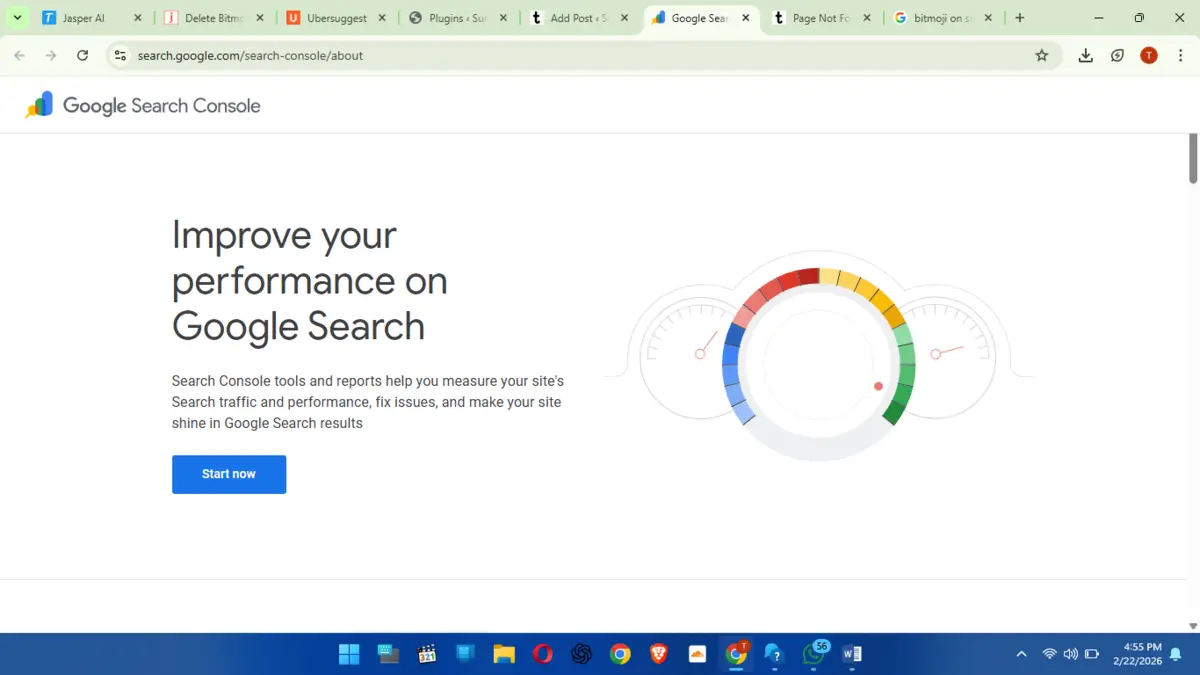
Let’s begin. Head over to the Google Search Console website and click the “Start now” button. You will be prompted to sign in with your Google account.
Step 1: Add Your Property
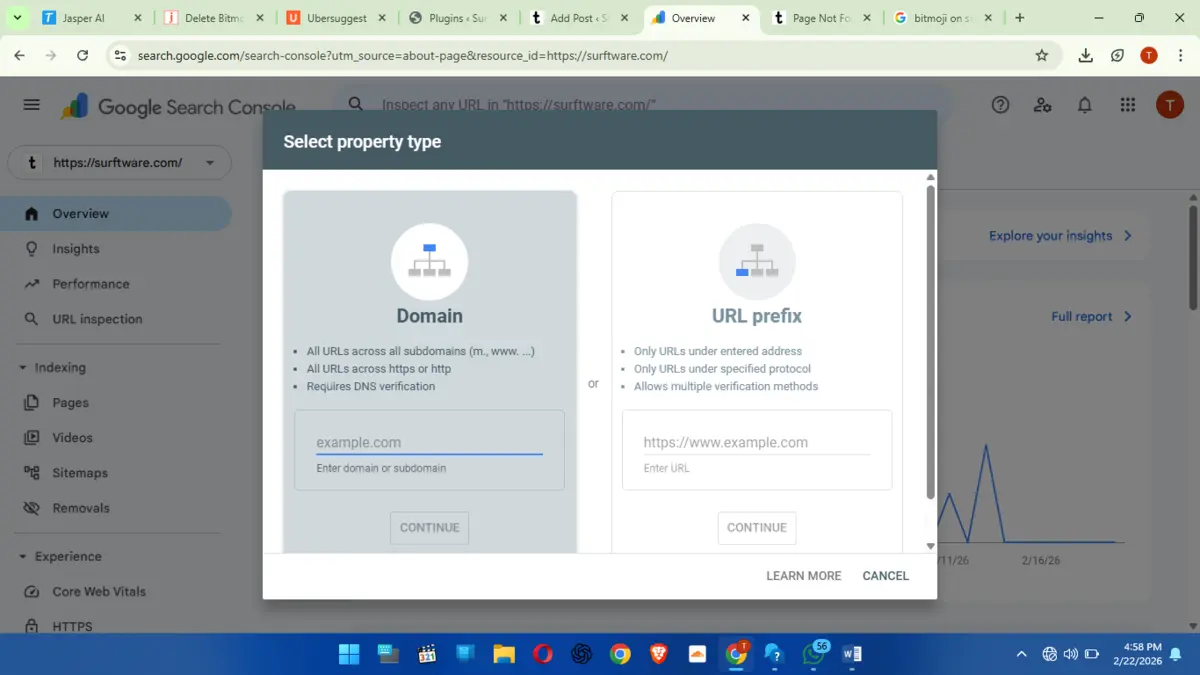
Once you are logged in, you will be presented with a screen asking you to select a property type. A “property” is simply what Google calls a website. You have two options here: Domain and URL prefix.
- Domain: This option covers your entire website, including all subdomains (like
blog.yourdomain.com) and protocols (http://vs.https://,wwwvs. non-www). It is the more comprehensive and recommended method, but it requires DNS verification, which can be a bit more technical. - URL prefix: This option is more specific. You enter the exact URL of your website, for example,
https://www.yourdomain.com. If you use this method, you will need to add separate properties for other versions of your site (likehttps://www.yourdomain.com/orhttps://www.bedpage.com/). While more limited, the verification methods for this option are often easier for beginners.
For most WordPress users, starting with the URL prefix method is the simplest path forward. Enter the full, primary URL of your WordPress site in the URL prefix box and click “Continue.” Make sure you use the correct version ( https:// is standard now).
Step 2: Choose a Verification Method
After you add your URL prefix, Google needs to confirm that you actually own the website. It cannot just take your word for it. This is the verification step, and it is where most people get stuck. Google will present you with several ways to prove ownership.
The recommended method is usually an HTML file upload. However, for WordPress users, there are far easier ways. We will focus on the three most common and user-friendly methods:
- Using an SEO Plugin (like Yoast SEO or Rank Math).
- Using the HTML Tag method.
- Using Google Analytics.
Let’s break down each one.
Method 1: Verification with an SEO Plugin (Easiest)
If you are using WordPress, chances are you already have an SEO plugin installed. Tools like Yoast SEO, Rank Math, or All in One SEO are incredibly popular and make this process a breeze. This is by far the recommended method for beginners.
Here’s how to do it using Yoast SEO as an example (the process is very similar for other plugins):
- Get the Verification Code: On the Google Search Console verification page, look for the “Other verification methods” section and click on HTML tag. Do not worry, you will not be editing any theme files. Google will show you a meta tag that looks something like this:
<meta name="google-site-verification" content="your_unique_code_here" />. You only need the string of letters and numbers inside thecontent=""part. Copy this code to your clipboard. - Go to Your WordPress Dashboard: Log in to your WordPress site and navigate to the plugin’s settings. For Yoast SEO, you will find this under Yoast SEO > Settings > Site connections.
- Paste the Code: Look for a field labeled “Google” or “Google verification code.” Paste the unique code you copied from Search Console into this field.
- Save Changes: Click the “Save changes” button in your WordPress dashboard.
- Verify on Google Search Console: Go back to the Google Search Console page where you got the HTML tag. Now, click the “Verify” button.
Google will check your site for the meta tag. Since your SEO plugin has automatically added it to your site’s header, the verification should succeed instantly. You will see a “Ownership verified” message. That is it! You are done.
Method 2: Verification with the HTML Tag (Manual)
If you do not use an SEO plugin or prefer a more direct approach without adding more plugins, you can add the HTML tag manually. This involves adding the code to your theme’s header file. A word of caution: editing theme files directly can break your site if done incorrectly. It is best to use a child theme or a dedicated plugin for adding header scripts.
- Get the HTML Tag: Just like in the previous method, select the HTML tag option in Google Search Console to get your verification meta tag. This time, copy the entire tag, not just the content string.
- Add the Tag to Your Header: In your WordPress dashboard, go to Appearance > Theme File Editor. Be very careful here. On the right side, find and click on the file named
header.php. - Paste the Code: Look for the closing
</head>tag in the code. Paste the full meta tag you copied from Google Search Console on a new line just before the</head>tag. - Update the File: Click the “Update File” button to save your changes.
- Verify: Return to Google Search Console and click “Verify.” Google will find the tag in your header and confirm your ownership.
A safer way to do this is by using a simple plugin like “Insert Headers and Footers.” This plugin gives you a dedicated box to paste code into your header without touching the theme files directly, which is highly recommended if you are not comfortable with code.
Method 3: Verification with Google Analytics
This method is incredibly simple if you already have Google Analytics set up on your WordPress site. It works because if you have permission to view Analytics data for a site, Google assumes you are an owner.
For this to work, you must be using the same Google account for both Google Analytics and Google Search Console. The Google Analytics tracking code must also be present in the <head> section of your website’s code.
- Choose the Google Analytics Option: On the verification screen in Search Console, select the Google Analytics option.
- Click Verify: As long as the conditions above are met, all you have to do is click the “Verify” button.
Google will check for the Analytics tracking code on your site, see that it is linked to the same Google account, and grant you ownership. This is another one-click solution for those who are already tracking their site traffic.
After Verification: What’s Next?
Congratulations! Your WordPress site is now connected to Google Search Console. But the work does not stop here. Now it is time to use the tool.
Submit Your Sitemap
The first thing you should do is submit your XML sitemap. A sitemap tells Google about all the pages on your site that you want to be indexed. Most WordPress SEO plugins, like Yoast SEO or Rank Math, automatically generate a sitemap for you.
You can usually find your sitemap at yourdomain.com/sitemap_index.xml.
- In your Search Console dashboard, go to Sitemaps in the left-hand menu.
- Under “Add a new sitemap,” enter the URL of your sitemap (e.g.,
sitemap_index.xml). - Click Submit.
Google will now use this map to crawl your site more intelligently.
Explore the Reports
Take some time to familiarize yourself with the dashboard. Here are a few key reports to check out:
- Performance: This is where you will see your search traffic data. Analyze which queries are driving clicks and which pages are most popular.
- Indexing > Pages: This report shows you which pages Google has indexed and if there are any that could not be indexed due to errors. This is crucial for technical SEO.
- Experience > Mobile Usability: This report will alert you if any of your pages are not mobile-friendly. With most traffic coming from mobile devices, fixing these issues is a top priority.
Troubleshooting Common Verification Issues
Sometimes, things do not go as planned. Here are a few common problems and how to solve them.
Verification Failed: If you get a “verification failed” message, it is usually for a simple reason. Go back and double-check your steps. Did you copy the correct code? Did you save your changes in WordPress before clicking “Verify”?
Caching Plugins: If you use a caching plugin on your WordPress site (like WP Rocket or W3 Total Cache), it might serve an old, cached version of your site to Google’s crawler that does not include the new verification tag. After adding the code, be sure to clear your website’s cache before you attempt to verify.
Wrong Property Type: Make sure the URL you entered in the “URL prefix” box exactly matches your site’s primary URL, including www or non-www and http or https protocol. Any small difference will cause the verification to fail.
Conclusion
Adding your WordPress site to Google Search Console is a foundational step for anyone who wants to grow their online presence. It unlocks a wealth of data and provides a direct communication channel with Google, giving you the insights needed to improve your SEO and attract more visitors.
While the process might seem technical at first, using an SEO plugin like Yoast SEO or Rank Math makes it incredibly simple—just a matter of copying and pasting a code. By following the steps outlined in this guide, you can get your site verified in minutes and start taking control of your search performance. Do not skip this step. Your website’s future success depends on it.
Frequently Asked Questions (FAQs)
Q: Is Google Search Console free?
A: Yes, Google Search Console is a completely free tool offered by Google to all website owners.
Q: How long does it take for data to appear in Search Console?
A: After you verify your site, it can take a few days for Google to process and display data in your reports. Be patient and check back in a day or two.
Q: Should I use the “Domain” or “URL prefix” property type?
A: The “Domain” property is more comprehensive and the modern standard. However, it requires DNS verification, which can be challenging for beginners. The “URL prefix” method is simpler to verify with WordPress and is perfectly fine for most users.
Q: Do I need to keep the verification code on my site?
A: Yes. You must keep the verification meta tag, HTML file, or Google Analytics code on your site permanently. If you remove it, Google will eventually revoke your ownership status in Search Console.
Q: Can I add multiple users to my Google Search Console property?
A: Yes, you can grant access to other people, such as an SEO specialist or a marketing team member. You can do this in the “Settings > Users and permissions” section of your dashboard.
Q: Does adding my site to Search Console automatically improve my ranking?
A: No, simply adding your site does not directly boost your rankings. However, the data and tools inside Search Console empower you to make informed decisions that will improve your SEO and, consequently, your rankings over time.

A passionate content writer with a knack for turning complex ideas into clear, compelling narratives. With a sharp eye for detail and a deep understanding of digital trends, and audience psychology, with experience in troubleshooting guides and digital tools.